
Is DISM actually stuck?
If the command has already ended with 0x800f081f, continue with checking the repair source, ISO and image index. The guide below covers the general repair sequence and progress that only appears to be stuck.
DISM progress is not linear. Use the final message, not a single percentage, to decide what happened.
| What you see | What it usually means | What to do |
|---|---|---|
| The same percentage for a while | DISM may still be scanning, downloading, or repairing | Keep the window open and wait for the final message |
| 100% but no new prompt | The progress display finished but cleanup may still be running | Do not start a second DISM or SFC window |
| “The operation completed successfully” | DISM finished | Run sfc /scannow in the same elevated terminal |
An error such as 0x800f081f |
DISM could not complete | Record the full code and fix that cause before retrying |
Microsoft says the command may take a few minutes to start and complete, but it does not publish one timeout that applies to every PC. Disk speed, Windows Update access, and the amount of corruption all change the runtime.
Before you start
- Save open work and connect a laptop to power.
- Make sure the system drive has free space.
- Keep the internet connection available because DISM may need Windows Update as a repair source.
- Do not close the terminal or force the PC off while a command is running.
Step 1: Open an elevated terminal
Open Start, search for Terminal or Command Prompt, right-click it, and choose Run as administrator. Approve the User Account Control prompt.
The commands will fail or provide incomplete results when the terminal is not elevated.
Step 2: Repair the Windows image with DISM
Run:
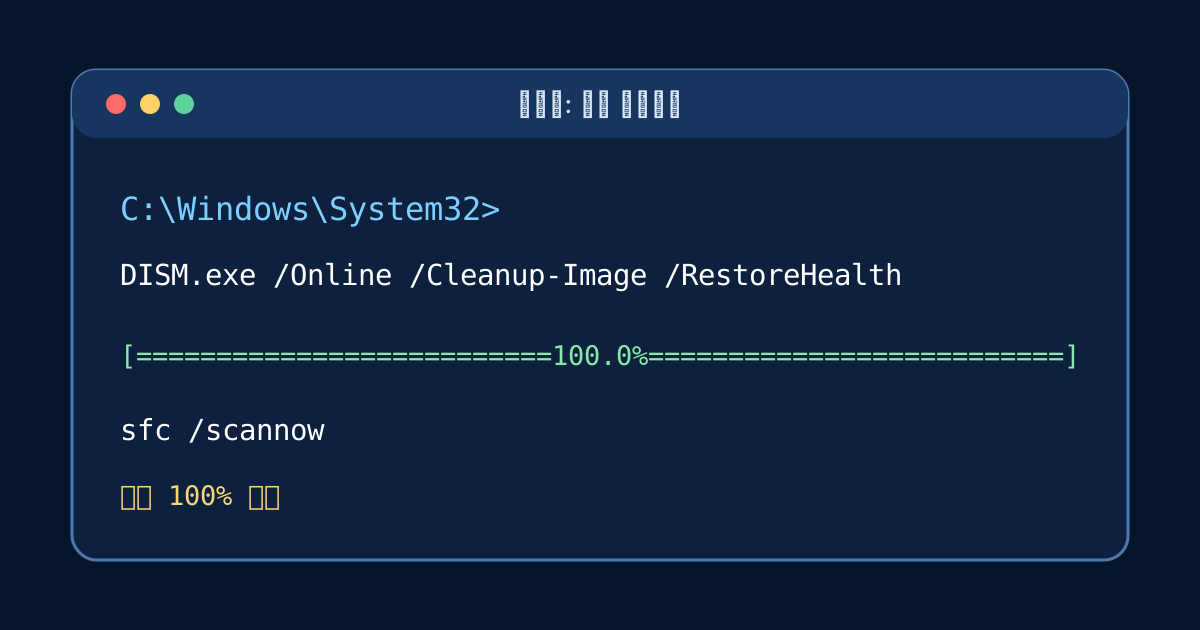
DISM.exe /Online /Cleanup-Image /RestoreHealth/Online targets the Windows installation currently running. /Cleanup-Image selects servicing operations, and /RestoreHealth scans for component-store corruption and attempts a repair.
The percentage can appear stuck for several minutes. Leave the window open until DISM reports that the operation completed or displays an error code.
Step 3: Check protected system files with SFC
After DISM completes successfully, run:
sfc /scannowSFC verifies protected Windows system files and replaces damaged copies when a valid repair source is available. Wait for verification to reach 100 percent.
What the SFC result means
- Windows Resource Protection did not find any integrity violations: protected system files appear intact.
- Windows Resource Protection found corrupt files and successfully repaired them: restart Windows and test the original problem again.
- Windows Resource Protection found corrupt files but was unable to fix some of them: restart and repeat DISM followed by SFC. If the result persists, inspect the CBS log or use Windows recovery options.
- Windows Resource Protection could not perform the requested operation: try Safe Mode or check the file system before running SFC again.
If DISM fails
Check the exact error code first. Confirm that Windows Update is working, restart the PC, and retry once. Managed work computers may block the repair source through policy, so contact the administrator instead of changing update policy yourself.
Advanced repairs can use a matching Windows installation image as the source, but the edition, language, and build must be compatible. Do not copy an unverified command that points to an unrelated ISO.
For 0x800f081f, Microsoft’s source syntax has this form:
DISM.exe /Online /Cleanup-Image /RestoreHealth /Source:C:\RepairSource\Windows /LimitAccessC:\RepairSource\Windows is a placeholder, not a path to paste unchanged. Replace it only with a compatible repair source.
/LimitAccess prevents DISM from contacting Windows Update for repair files. It is not a general fix for source errors: adding it without a usable local source can remove the fallback you need.
Keep a useful repair record
Before retrying, note the command, its final message, the error code, the start time, and the Windows version shown by winver. This separates one failed attempt from older entries in the same log.
In an elevated PowerShell window, this read-only command shows the end of the DISM log:
Get-Content -LiteralPath "$env:windir\Logs\DISM\dism.log" -Tail 80For SFC, inspect %windir%\Logs\CBS\CBS.log. The last 80 DISM lines are a starting point, not a guarantee that the cause appears there. Match timestamps to your attempt and preserve the final console message; an old error elsewhere in the file may be unrelated. Remove usernames, machine names, and private paths before sharing an excerpt publicly.
When these commands are worth trying
Windows includes both tools, so there is nothing to download. They are useful when Windows Update fails, built-in features stop opening, the system becomes unstable after an interrupted update, or an error mentions missing or corrupted system files.
They are not general performance boosters. If the PC is slow because the disk is nearly full, memory is insufficient, or a drive is failing, these commands will not remove the underlying cause.
CheckHealth, ScanHealth, or RestoreHealth?
These switches answer different questions. They are not three repairs you must run in sequence.
Switch after DISM.exe /Online /Cleanup-Image |
Purpose | Repairs files? |
|---|---|---|
/CheckHealth |
Check whether corruption has already been recorded | No |
/ScanHealth |
Scan the component store for corruption | No |
/RestoreHealth |
Scan and attempt to repair the component store | Yes |
For the repair workflow below, start with /RestoreHealth. Running a second scan in another terminal does not make an existing repair finish faster. /Online means the Windows installation you are currently running; it does not mean an online-only scan.
After the repair
Restart Windows, install pending updates, and reproduce the original problem. If the same failure continues, check storage health, available memory, startup applications, malware, and recent driver or software changes rather than repeatedly running SFC.
If Windows Update itself is stuck, follow the Windows Update troubleshooting order. For a slow startup caused by accumulated Korean banking modules, use the Hoax Eliminator cleanup guide. Move to Windows reset preparation only after repair and backup options have been reviewed.