
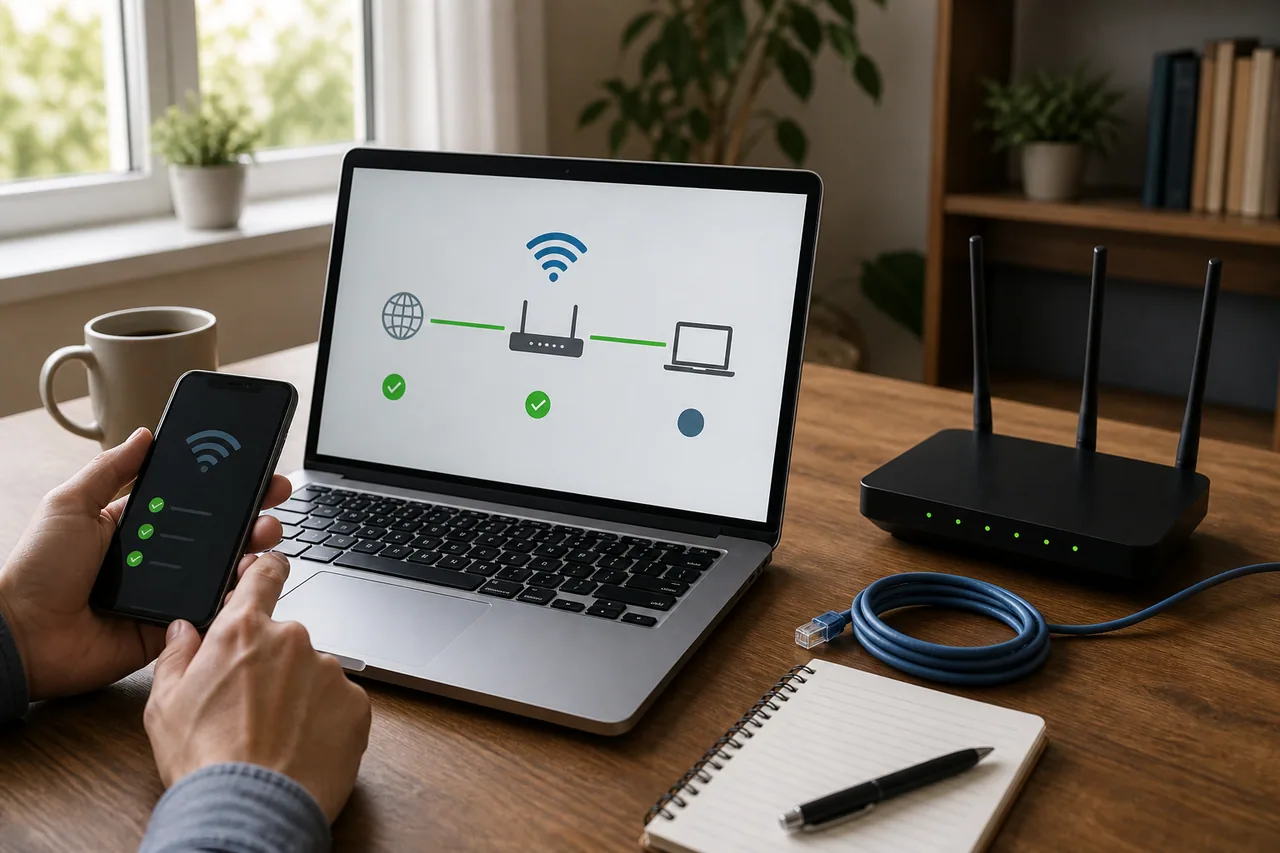
First decide whether the router or this PC is failing
The label Connected only confirms that the PC has joined the local Wi-Fi network. It does not prove that the router has a working path to the internet. Two comparison tests prevent a great deal of unnecessary resetting:
- Open a few websites on a phone connected to the same Wi-Fi.
- Connect the affected PC to the phone’s hotspot and test again.
If every device fails on the same Wi-Fi, investigate the modem, router or internet provider first. If the phone works but the PC does not, focus on Windows, the wireless adapter, a VPN or proxy. If the PC works on the hotspot, the adapter can communicate; the home router’s address assignment, compatibility or upstream connection becomes more likely.
Also distinguish one broken destination from a general outage. If most apps and websites work, but one service does not, check that service’s status, another browser, extensions and firewall rules before changing the entire network configuration.
Start with changes that are easy to reverse
Open Settings → Network & internet, review the displayed state, and run the Network and Internet troubleshooter through Get Help. Then try these actions one at a time, testing after each one:
- Turn Wi-Fi off and back on.
- Open Wi-Fi → Manage known networks, forget the affected network, and reconnect with the password.
- Use Restart, not merely Shut down, to reload Windows and the adapter driver.
- If you control the network, disconnect power from the modem and router for about 30 seconds. Reconnect the modem first, wait for it to settle, and then reconnect the router.
- Temporarily disconnect a VPN and inspect Network & internet → Proxy for an unintended manual proxy.
Restarting network equipment interrupts everyone using it. Coordinate first if someone is in a call or transferring data. Do not try to restart equipment on a hotel, airport, office or other managed network; report which devices and services fail instead.
Use the IP address to choose the next check
Run ipconfig in Terminal or Command Prompt and look at the Wi-Fi adapter’s IPv4 address and default gateway. An address such as 169.254.x.x usually indicates that Windows did not receive a usable address from the router. A missing gateway or an old manual address can also explain why the PC reaches Wi-Fi but not the internet.
Microsoft lists the following commands for resetting the TCP/IP and Winsock state, requesting a fresh address, and clearing the DNS resolver cache. Run Command Prompt as administrator and enter them in order:
netsh winsock reset
netsh int ip reset
ipconfig /release
ipconfig /renew
ipconfig /flushdns
Restart the PC afterward. These commands cannot fix an ISP outage or failed router. On a managed network that uses fixed IP or DNS values, record the configuration and ask the administrator before replacing it.
If websites open by IP address but names fail, DNS deserves attention. Avoid installing a random “network repair” utility or choosing an unknown DNS provider from an advertisement. Confirm the assigned DNS server and use a provider or administrator-approved alternative.
If the Wi-Fi control disappears, inspect the adapter
When no Wi-Fi option or nearby network list appears, open Device Manager → Network adapters. Check whether the wireless device is disabled or marked with an error. Obtain the current driver for the exact PC model from the manufacturer’s official support site, ideally on another device, and keep the installer on a USB drive.
Microsoft suggests uninstalling the adapter and restarting when a recent update appears to have damaged the driver state. Windows can normally detect and reinstall the adapter, but deleting it before obtaining a backup driver can leave an offline PC with no way to download one. Preparation comes first.
If the connection drops mainly after sleep, review the adapter’s power-management behavior and the manufacturer’s support notes. Change one setting at a time and record it; aggressive performance settings may increase battery use without fixing a router-side problem.
Treat network reset as the final software step
When the earlier checks fail, Windows 11 provides Settings → Network & internet → Advanced network settings → Network reset. Microsoft explains that it removes installed network adapters, reinstalls them after restart, and returns related settings to defaults.
Before selecting it, save:
- Wi-Fi passwords and instructions for office or school access;
- VPN application, server and authentication details;
- any intentional fixed IP and DNS values;
- Hyper-V or other virtualization switch configuration;
- the manufacturer’s Wi-Fi and Ethernet drivers.
The reset may change a known connection to a public network profile. Only change it back to private on a trusted home network when device discovery or local printer sharing is actually required.
Record four observations to isolate the failed segment
Before repeating fixes, collect the same observations under the same conditions. One command is not proof by itself; compare it with another device and the phone-hotspot result.
| Observation | Most likely scope | Next action |
|---|---|---|
IPv4 is 169.254.x.x and no default gateway appears |
The PC did not receive an address | Rejoin Wi-Fi, inspect DHCP/router state, and confirm whether the organization uses fixed addressing |
| The gateway does not reply, but the PC works on a phone hotspot | This Wi-Fi or router segment | Compare distance, frequency band and another device, then report the evidence to the network owner |
| The gateway replies, but several devices cannot reach the internet | Modem, ISP or upstream service | Check modem indicators and provider status; postpone a router factory reset |
| External IP connectivity works, but domain names fail | DNS assignment or resolver | Record the assigned DNS and nslookup result, then compare an administrator-approved resolver |
| Other browsers and applications work | One app, extension, proxy or firewall rule | Inspect that application before resetting the whole network stack |
Some networks block ping by policy, so a missing reply does not prove hardware failure. Record the time, network name, IPv4 address, gateway, hotspot result and affected applications. That evidence is more useful to an administrator or provider than “the internet does not work.”
What to do when the connection still fails
If the PC also fails on a phone hotspot and Device Manager reports an error, prioritize the adapter and driver. If every device loses access on one router, contact the provider or router administrator. If only a browser fails, compare another application and narrow down browser, proxy and security software settings.
For symptoms that began after an update and include broader Windows corruption, follow the DISM and SFC repair order. If the PC is generally slow and Task Manager shows network-heavy software loading at sign-in, use the slow startup diagnosis as a separate investigation.
Do not jump from one connectivity problem directly to resetting Windows. If system recovery eventually becomes necessary, prepare files, encryption access and application records with the Windows 11 reset checklist.
Compact checklist
- Compared another device on the same Wi-Fi and the PC on a phone hotspot
- Distinguished one-site failure from a general internet failure
- Ran Get Help, forgot and rejoined the network, and restarted the PC
- Restarted the router only on a network you control
- Checked for a
169.254.x.xaddress, missing gateway and unintended proxy - Downloaded the official driver before removing the adapter
- Recorded VPN, fixed-IP and virtual-switch settings before network reset
The safest route is not the strongest reset. It is a sequence of comparisons that identifies which side of the connection has actually failed.