

Record the key ID and stop changing security settings
BitLocker can ask for recovery information when an encrypted drive no longer unlocks under its usual trusted conditions. Firmware, TPM, Secure Boot, boot-file, or hardware changes can trigger recovery, but the prompt alone does not prove an attack or a failed disk.
Photograph or write down the first eight characters of the recovery key ID shown on the screen. This ID selects the matching entry when an account stores several 48-digit keys; it is not the recovery key itself.
Do not keep clearing the TPM, disabling Secure Boot, restoring firmware defaults, and changing boot settings while the key is missing. More configuration changes can hide the original trigger and create another recovery problem.
Search the location that matches the device owner
| Device type | Check first | Account to use |
|---|---|---|
| Personal PC set up with a Microsoft account | https://aka.ms/myrecoverykey |
The personal account used to set up the PC or enable encryption |
| Work or school PC | https://aka.ms/aadrecoverykey or the help desk |
The device’s organization account |
| PC set up by a relative, seller, or technician | That person’s setup account | It may differ from the account you normally use |
| Key saved as a file or printout | USB text file and stored paperwork | The item with the matching key ID |
| Domain-managed organization PC | Organization help desk | Key held in Entra ID or Active Directory |
For a personal PC, use another phone or computer to open the Microsoft recovery-key page. When several entries appear, match the first eight characters of the ID exactly. Windows 11 version 24H2 and later may show a hint for the Microsoft account associated with the key.
An organization account may expose BitLocker keys under its Devices area, or policy may require IT to retrieve them. Give the help desk the device name, asset number, and first eight characters of the key ID. Do not paste the full 48-digit key into a public ticket, forum, or chat.
If the expected account has no key
Do not reset immediately. Check these possibilities in order:
- Another personal Microsoft account used during the PC’s first setup.
- A relative, employer, school, seller, or technician who performed setup.
- A printed page or saved PDF named for the BitLocker recovery key.
- A USB text-file copy, opened on another working device.
- A work or school account previously connected to this PC, plus its IT team.
There is no reason to repeatedly enter a 48-digit value with a different ID. A familiar device name or recent creation date is weaker evidence than an exact key-ID match.
Treat the recovery key like a powerful password
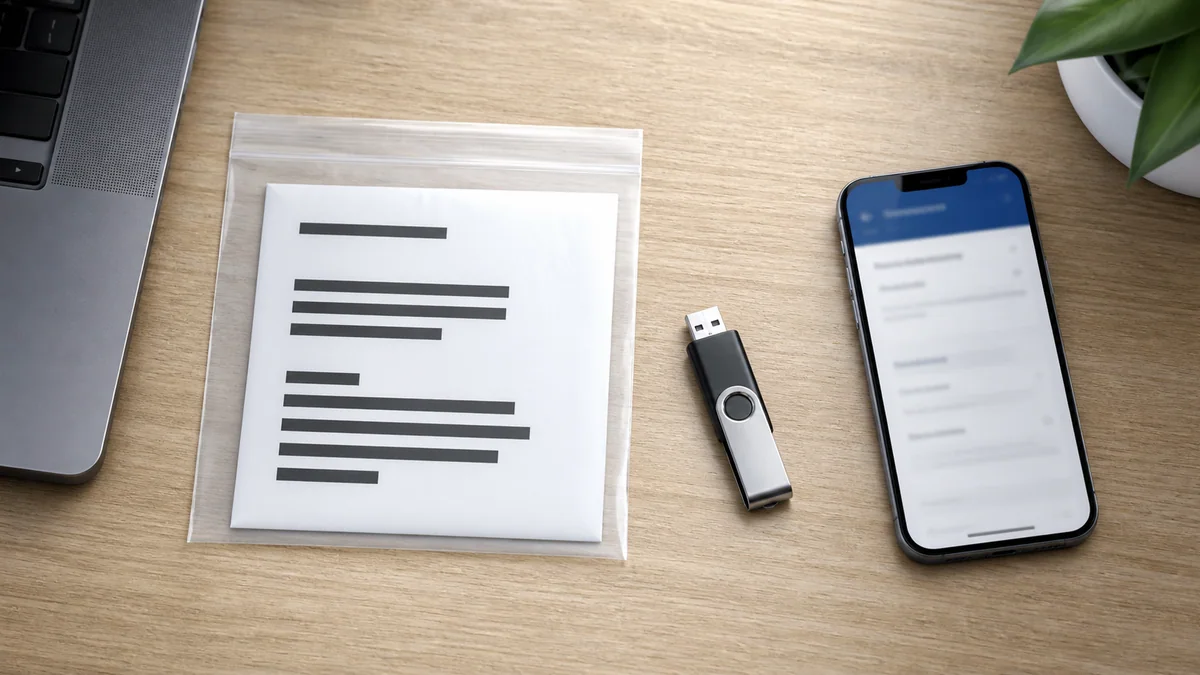
Anyone with the recovery information may be able to unlock the encrypted drive. Keep the 48 digits out of screenshots, resale listings, forum posts, and screen sharing. Start support conversations with the device information and the first eight characters of the ID, not the full key.
Do not keep every offline copy in the same laptop bag as the encrypted device. Separate storage—for example, a secured account plus one protected offline copy—helps if the device is lost or damaged.
| Storage method | Advantage | Caution |
|---|---|---|
| Personal Microsoft account | Accessible from another device | Remember which account and protect its sign-in |
| Work or school account | Organization and help-desk recovery | Resolve ownership and personal data before leaving the organization |
| Printout | Independent of online account access | Store in a locked place and prevent photo exposure |
| USB or text file | Offline availability | Do not store it only beside the protected PC |
After Windows unlocks, identify the trigger
Once the correct 48 digits start Windows, record what changed before the prompt:
- a BIOS, UEFI, TPM, or Secure Boot setting;
- a BIOS, firmware, or Windows update;
- motherboard, storage, battery, or security-module service;
- a new boot device or dock configuration;
- a reset clock or changed boot order.
Check the PC manufacturer’s support notices and diagnostics for the exact model, then verify that the current recovery key is backed up in the expected account or organization store. On a managed PC, give IT the time and change history instead of modifying BitLocker protectors or the TPM yourself.
If recovery repeats after an update, compare the Windows Update troubleshooting steps. If you originally entered recovery while diagnosing a blank display or failed boot, use the black-screen guide to continue without random firmware changes.
Without the key, existing encrypted files may not be recoverable
Microsoft explicitly says it cannot retrieve, provide, or recreate a lost key. If no personal account, organization administrator, printout, or USB copy contains it—and the change that triggered recovery cannot be reversed—the remaining Windows recovery path may require a device reset. Resetting removes the encrypted drive’s files.
Do not trust unofficial tools or paid services that promise to bypass BitLocker and preserve every file without the recovery information. Preventing access without the correct key is the purpose of the encryption.
Before resetting, check whether files already exist on another drive or in a synchronized cloud account, and follow retention or return procedures for an organization device. Use the Windows reset preparation checklist to inventory backups, accounts, applications, and recovery information.
Preparation checklist for next time
- Confirm whether the key is in a personal or organization account.
- Verify that a saved entry opens and its key ID matches the device.
- Keep the full key out of photos, messages, and public documents.
- Store an offline copy away from the encrypted device.
- Prepare the key before BIOS, TPM, or Secure Boot changes.
- Check the manufacturer’s and organization’s process before motherboard service.
- Record the trigger and firmware or update history after recovery.
The key facts on a BitLocker screen are the current key ID and the account that owns the device. Match those first to avoid unnecessary firmware changes and irreversible data loss.