
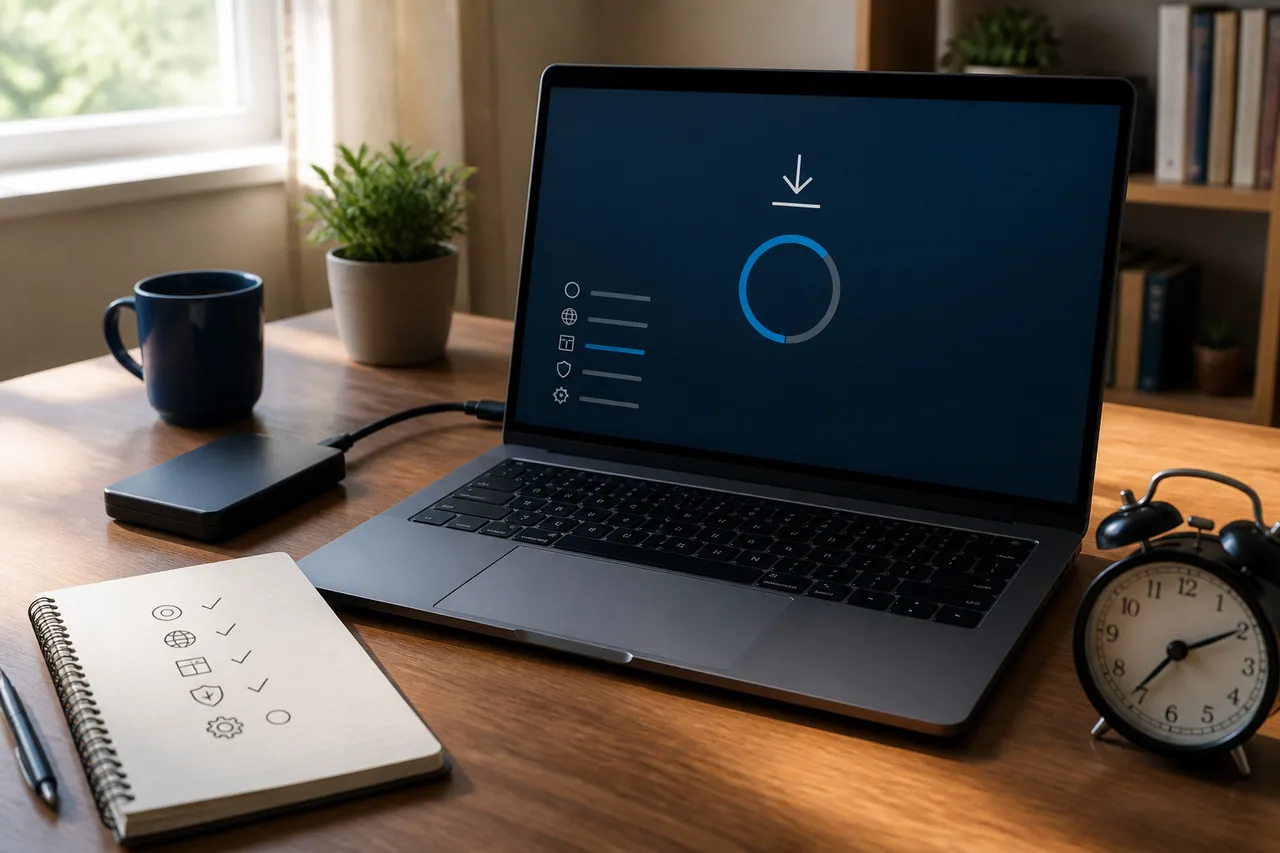
Record the stage before interrupting anything
“The update is stuck” can describe several different failures: a download at 0%, an installation at 100%, a restart applying changes, a rollback, or repeated Settings failures with one error code. The safest next action depends on which stage is actually visible.
Photograph the screen or record:
- whether the PC is downloading, installing, restarting or undoing changes;
- whether the percentage is still moving;
- the complete code, such as
0x800f0922or0xC1900101; - the update name and KB number;
- drivers, security software or peripherals changed immediately beforehand.
Connect a laptop to power and keep a stable internet path. If the percentage still moves or storage activity continues, allow more time. Never assume that every update screen is ordinary Windows servicing: interrupting a BIOS, UEFI or device-firmware update can leave the computer unable to start.
Check restart, connection and storage first
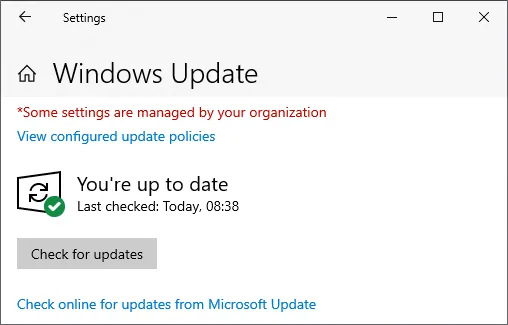
When Windows has returned to the desktop and Settings reports a failure, save open work, choose Restart, and then open Settings → Windows Update → Check for updates. Restart is more useful than a normal shutdown for clearing pending component and driver state.
Microsoft includes connection and free storage among its core update checks. If policy allows, disconnect a VPN temporarily and retry. When the Wi-Fi connection itself is unreliable, separate that issue with the Wi-Fi connected but no internet guide before treating the update service as broken.
Open Settings → System → Storage → Cleanup recommendations and review every proposed deletion. Do not blindly select Downloads or Recycle Bin. Copy anything important first. Microsoft’s general update troubleshooting page lists at least 20 GB free for a 64-bit operating-system upgrade, but the actual requirement varies with update type and configuration. Follow the space requirement Windows displays for this device; supported update flows can also offer an external-storage option.
Run the supported Windows Update troubleshooter
On Windows 11, open Settings → System → Troubleshoot → Other troubleshooters, find Windows Update and select Run, or use the automated flow in Get Help. Restart after it completes, check for updates again, and record any new result.
This is the supported first diagnostic for common service and configuration problems. A failed run is not a reason to paste a long set of service-stop and folder-deletion commands from an old forum post. The result and error code are evidence for the next targeted step.
Company and school devices may receive updates from an organizational service, with deferral and restart policies. If Settings says that updates are managed, do not change services or group policy. Give IT the KB number, full error code, time of failure and whether the problem happens on another network.
Repair components only when the evidence points there
After the troubleshooter and basic checks, repeated component-related failures can justify DISM and System File Checker. Use the DISM and SFC repair order to understand which command comes first and what the completion messages mean.
Do not close the terminal before a scan finishes. If DISM cannot obtain or repair its source, repeating the same command indefinitely is not a repair strategy. Confirm the backup, storage health and supported recovery options.
Avoid one-click “Windows Update repair” downloads and copied scripts that stop many services, change registry values and erase caches without explanation. They make it difficult to identify what helped and can be wrong for a current or managed Windows version.
Repair reinstall is a useful step before Reset this PC
Supported Windows 11 installations may show Settings → System → Recovery → Fix problems using Windows Update → Reinstall now. Microsoft says this downloads and reinstalls the same current Windows version, repairs system files and components, and preserves applications, files and settings.
Keep the PC connected to power and the internet throughout. Preserve a separate file backup even though the designed behavior keeps data. The option may be absent on some managed devices or systems missing prerequisite updates; do not bypass organizational policy to expose it.
If repair reinstall fails or Windows cannot reach the desktop, compare a restore point, the Windows recovery environment, manufacturer support and a reset. Before selecting the reset path, record encryption access, files and applications with the Windows 11 reset checklist.
Use error codes as a route, not a diagnosis
An error code narrows the first area to inspect; it does not prove one component is defective. Microsoft’s current guidance associates common examples with these areas:
| Example | First area to inspect |
|---|---|
0x80240034 |
Incomplete download, connection or update-service state |
0x800f0922 |
Free space, VPN or Windows components |
0x8007000d |
Update data or component corruption |
0xC1900101 |
Incompatible driver or peripheral |
0x800705b4 |
Update timed out or was interrupted |
For 0xC1900101, safely disconnect printers, capture devices, external storage and other peripherals not required for the update. Review Device Manager and the PC manufacturer’s official driver page. Do not delete every driver at once; begin with recent changes and devices marked with a warning.
If the code changes on each attempt, disk errors occur, or applications also crash, refresh the backup before continuing. The wider pattern may indicate a storage, memory or general system-stability issue rather than one damaged update download.
Change one variable and keep a result log
Running several copied fixes at once hides which change mattered. Keep this small record for each attempt so that a repeated failure leads to a deliberate next step instead of another random reset.
| Record | Example | How it guides the next attempt |
|---|---|---|
| Target update | KB number or feature-update name | Separates one package failure from a general update problem |
| Failure stage | Download 0%, install 25%, rollback after restart | Prioritizes connection, storage, driver or boot-stage checks |
| Complete message | Full 0x code and visible wording |
Allows an exact comparison with Microsoft support instead of a partial-code search |
| One change made | VPN disconnected, peripheral removed, troubleshooter run | Keeps the next test reproducible and reversible |
| Retest result | Completed, same code, new code or boot failure | Same code advances the plan; a new symptom triggers reassessment |
Restart after each planned change and inspect Windows Update → Update history. If the same code remains, continue to the next evidence-based step. If the code changes or new disk and boot symptoms appear, stop adding repair commands and verify the backup and storage condition first.
Compact recovery checklist
- Recorded the stage, percentage, KB number and complete error code
- Kept stable power and did not interrupt an update that was still progressing
- Restarted, checked the connection, and reviewed free storage safely
- Ran the Windows Update troubleshooter and restarted again
- Used the code to prioritize driver, space, connection or component checks
- Backed up important files before DISM, SFC or recovery work
- Distinguished current-version repair reinstall from Reset this PC
The goal is not to force the percentage forward. It is to preserve the machine while moving from reversible checks to deeper repair only when the evidence supports it.