
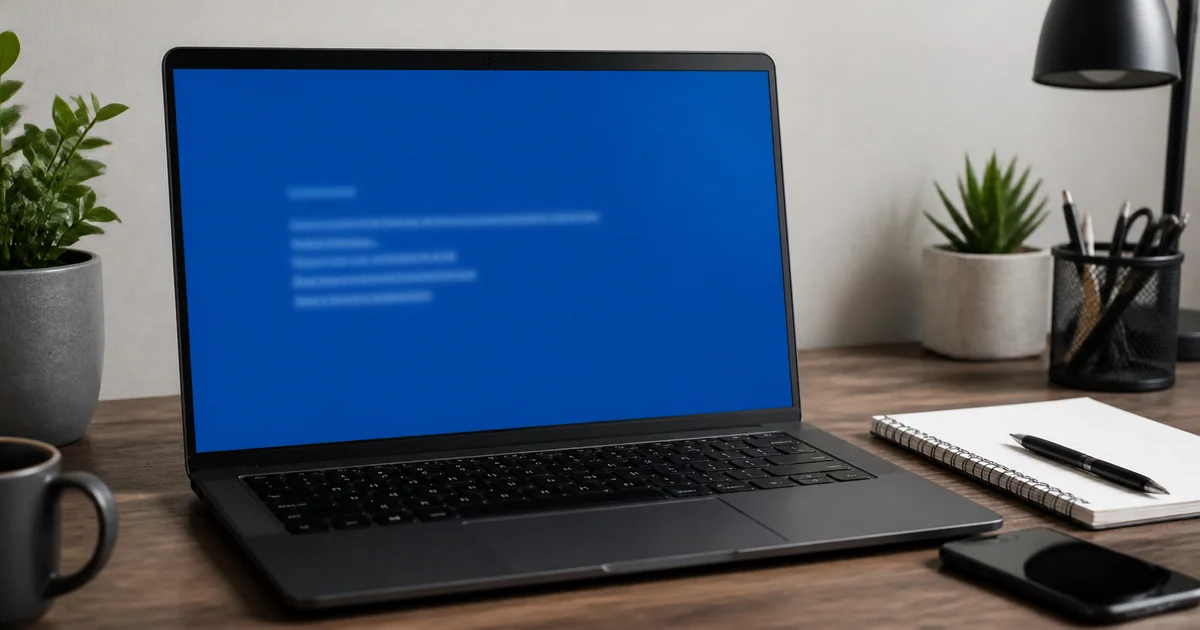
Record the stop code and the conditions, not just the screen color
Windows can stop and restart when it detects a serious failure that could put data at risk. People still call this a blue screen, but newer Windows 11 releases may show the same class of stop-code error on a black screen. Capture the evidence instead of diagnosing by color:
- the full uppercase stop code, such as
CRITICAL_PROCESS_DIED; - the complete module name after
What failed, when present; - the time and the app or task that was running;
- any Windows update, driver, RAM, SSD, or USB device added just before it began;
- whether it happened once or repeats during boot, gaming, sleep resume, or another specific condition.
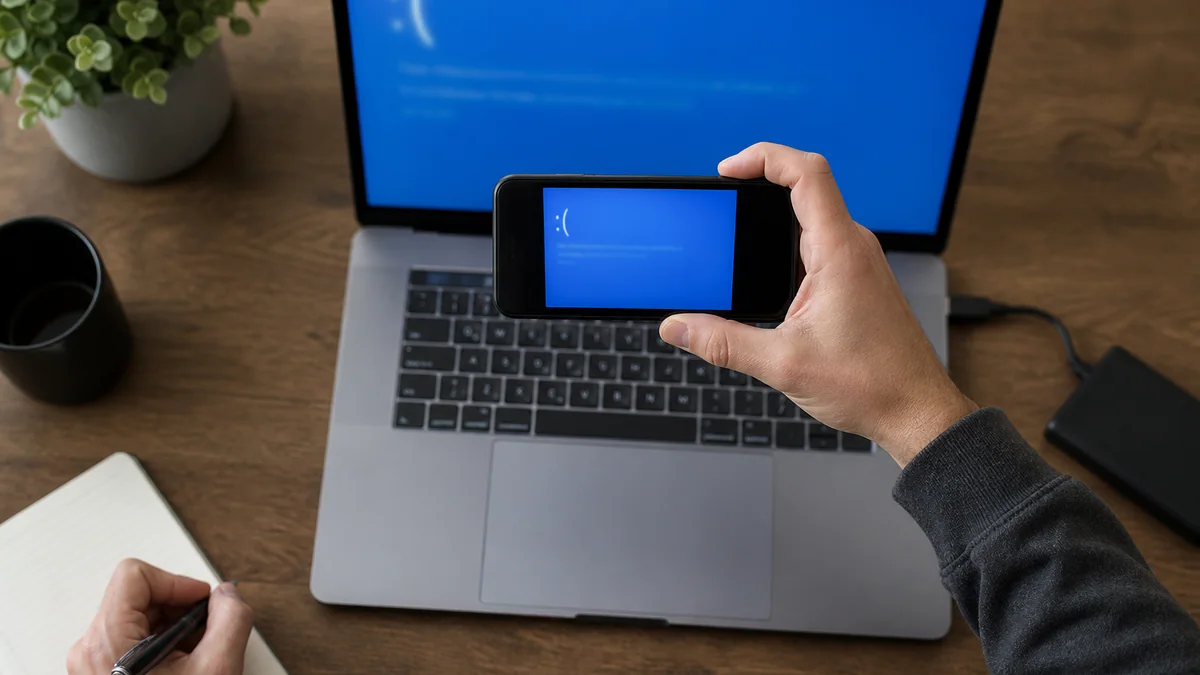
If automatic restart makes the message disappear too quickly, photograph it with a phone. A complete code plus a repeatable condition is more useful than searching for a few remembered characters.
Choose the first action that matches the current state
| Current state | First action | Do not do yet |
|---|---|---|
| One crash, then a normal boot | Record the code and time; check update history and free space | Reset Windows or remove several drivers |
| Repeats after adding USB, RAM, or a graphics card | Shut down and safely remove the new device; retest | Change multiple firmware settings |
| Restarts before sign-in | Prepare for Windows Recovery Environment and Safe Mode | Repeatedly force off every boot |
| Only crashes in one game or app | Compare the app, graphics driver, temperature, and power condition | Treat the stop code as proof of bad RAM |
| Disk or file errors occur too | Back up important files first | Loop repair commands indefinitely |
Power the PC off and disconnect power before removing hardware. If the part requires opening a laptop, follow the manufacturer’s warranty and service instructions rather than experimenting inside the device.
If Windows starts, check the basic state first
Microsoft’s baseline flow covers new hardware, Safe Mode, Device Manager, free space, Windows Update, and recovery options. When Windows is usable, work through one change at a time:
- Open Settings → Windows Update → Update history and record items installed just before the first crash.
- Check Device Manager for warning icons and recently changed graphics, storage, and network devices.
- Check free space on the system drive. Microsoft gives roughly 10–15% free as a useful general target, although the exact need varies.
- Use the PC manufacturer’s support page for the exact model when checking BIOS, chipset, graphics, and storage drivers.
- Back up important files, make one change, and retest under the original failure condition.
Avoid unknown automatic driver-updater utilities. Similar device names do not guarantee the same laptop power management or switchable-graphics configuration.
If the failures started after a Windows update, use the Windows Update failure guide to track the KB number and update state.
Use Safe Mode to narrow a pre-sign-in loop
Windows may open the Recovery Environment after repeated failed boots. If necessary, Microsoft’s documented method is to interrupt startup at the logo twice, then let the third start reach Automatic Repair → Advanced options. Use forced shutdown only to reach recovery; never interrupt an update-application or firmware screen.
Choose Troubleshoot → Advanced options → Startup Settings → Restart → Safe Mode. An encrypted device may request its BitLocker key before recovery tools open, so use another device to follow the BitLocker recovery-key guide first.
If the crash disappears in Safe Mode, added drivers, startup apps, or services become stronger candidates than the basic Windows driver set. Review recent installations by date and reverse one item at a time. If the same code appears in Safe Mode, broaden the investigation to storage, hardware, and core Windows components.
Repair system files only after preserving the evidence
If Windows starts reliably and important files are backed up, DISM and SFC can check the component store and protected system files. Follow the exact order and completion criteria in the DISM and SFC repair guide.
A successful command does not repair failing hardware. A failed command is not a reason to repeat it forever; examine its result, storage health, and repair-source availability.
When Windows will not start normally, choose among Startup Repair, Uninstall Updates, and System Restore in Windows RE based on what changed. System Restore is usually less destructive than a reset when the failure clearly followed an app, driver, or settings change. Confirm restore points and BitLocker-key access before proceeding.
Stop software troubleshooting when hardware warning signs appear
Shut down and consider manufacturer diagnostics or professional service when:
- storage makes a new mechanical noise or file-read errors are increasing;
- the PC has a burning smell, abnormal heat, or sudden power loss;
- the same stop code returns rapidly even in Safe Mode;
- reseating RAM or an SSD would require unfamiliar disassembly or affect the warranty;
- irreplaceable work is not backed up and each successful boot is getting shorter.
Before considering a reset, complete the Windows reset preparation checklist. Keep my files is not a complete backup of installed apps and settings.
A stop code is a scope, not a verdict
The same code can result from a driver, memory, storage, system-file, firmware, or power issue. Use this table to choose what to compare, not what to delete.
| Example stop code | Area to check first | Evidence to keep |
|---|---|---|
DRIVER_IRQL_NOT_LESS_OR_EQUAL |
Recent driver or device changes | What failed module, new peripherals, Safe Mode result |
MEMORY_MANAGEMENT |
Memory stability, drivers, storage | RAM upgrade date, workload, frequency |
CRITICAL_PROCESS_DIED |
System files, storage, updates | Disk errors, update history, DISM and SFC result |
INACCESSIBLE_BOOT_DEVICE |
Storage connection, driver, boot configuration | Firmware changes, SSD replacement, update timing |
WHEA_UNCORRECTABLE_ERROR |
Hardware, firmware, power, temperature | High-load pattern, heat, overclocking, vendor diagnostics |
Do not change registry or boot settings because of one code alone. Even a module named under What failed may be where the crash surfaced rather than the component that originally supplied bad data.
Keep a small recurrence log
| Field | Example | How it helps |
|---|---|---|
| Stop code | Full uppercase name | Confirms whether the same failure repeats |
| What failed | Full filename when shown | Correlates the crash with recent devices and drivers |
| Condition | Boot, sleep resume, 20 minutes into a game | Separates thermal, power, and app-specific patterns |
| Last change | KB update, SSD replacement, new USB device | Selects one reversible test |
| Action and result | Peripheral removed, three normal boots | Tests the fix under comparable conditions |
One quiet day does not prove a fix if the original trigger has not been repeated. Change one variable at a time so the result remains meaningful.
Final checklist
- Record the full stop code, What failed entry, time, and repeat condition.
- Isolate new hardware and recent changes one at a time.
- Check Device Manager, free space, and Windows Update history.
- Use manufacturer drivers instead of automatic driver utilities.
- Prepare the BitLocker key and compare Safe Mode behavior if boot loops.
- Back up important files before DISM, SFC, restore, or reset work.
- Stop software experiments when heat, noise, power, or file errors point to hardware.
The goal is not to find a universal command for one code. Preserve the evidence, begin with reversible comparisons, and separate software from hardware step by step.