
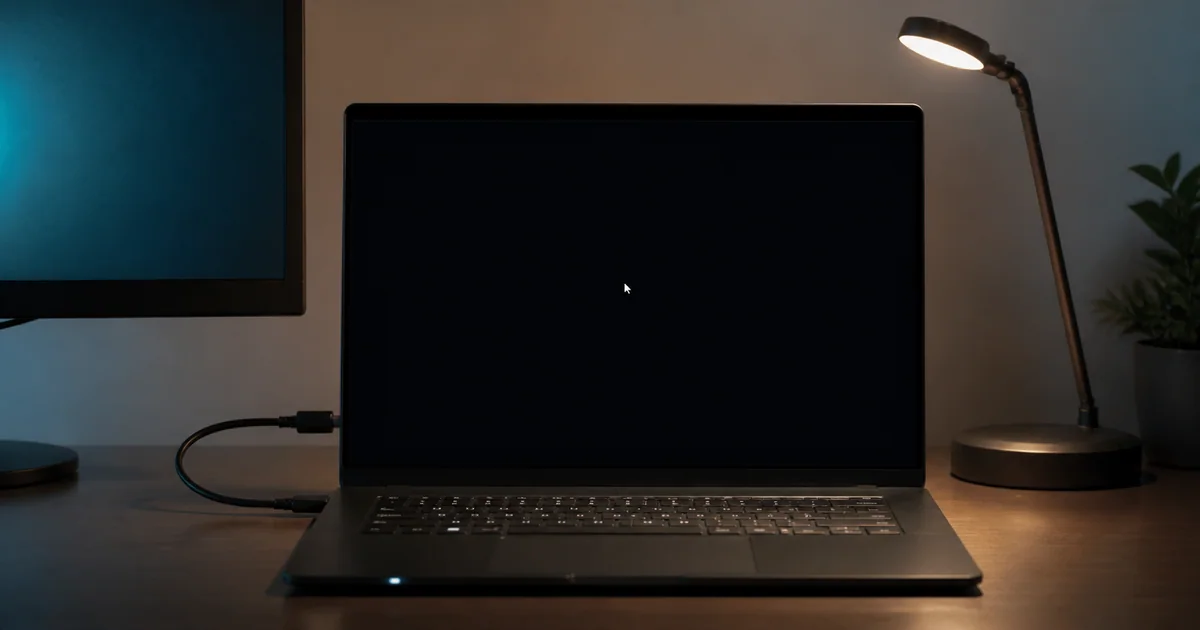
First identify when the screen goes black
Black screen can describe no signal before Windows, a cursor after sign-in, or a blank display after an update. Observe the stage before repeatedly using the power button.
| What you can see | Likely scope | Check first |
|---|---|---|
| No manufacturer logo or firmware screen | Power, brightness, monitor input, cable, hardware | Power indicators, brightness, another cable and display |
| Manufacturer logo appears, then Windows goes black | Output mode, graphics driver, update | Keyboard shortcuts, disconnect external display, Safe Mode |
| Cursor moves after sign-in | Windows Explorer, startup app, graphics driver | Ctrl+Alt+Delete and Task Manager |
| Stop code appears, then the PC restarts | System crash | Stop-code crash guide |
| A BitLocker key prompt appears | Encryption recovery | Find the BitLocker recovery key |
Test a laptop with and without its external monitor. If notification sounds, fans, or keyboard lights still respond, start with the display path rather than assuming the entire PC has lost power.
Try the one-minute display recovery checks
If Windows appears to be running, use each shortcut once and wait 10–20 seconds after it:
- Windows + Ctrl + Shift + B resets the graphics-driver response. The screen may flicker or make a sound.
- Windows + P, then P and Enter, advances the output mode in case Windows is sending the desktop to another display.
- Ctrl + Alt + Delete tests whether the security screen appears.
- Ctrl + Shift + Esc tests whether Task Manager opens.
Do not press every shortcut dozens of times. Record which input restored the screen; that evidence matters if the symptom returns.
Reduce the setup to one screen and one cable
On a desktop, confirm that the monitor input matches the connected HDMI or DisplayPort socket. Reconnect both ends of the cable, then compare a cable and screen already known to work. If the PC has a separate graphics card, make sure the monitor is connected to the intended graphics output rather than an inactive motherboard port.
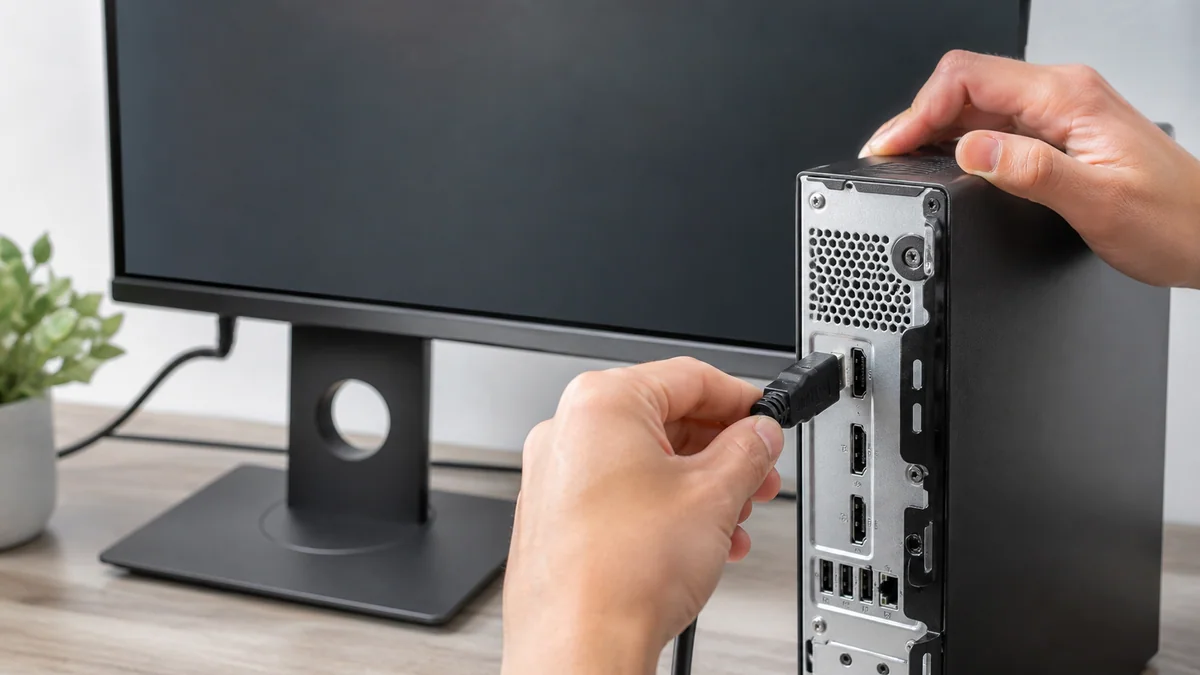
Disconnect docks, USB display adapters, capture devices, extra screens, and nonessential peripherals. Raise laptop brightness, fully open the lid, and check whether the manufacturer provides a dedicated display-switch key.
If no monitor ever shows the manufacturer logo and the PC gives no normal startup cues, use the manufacturer’s power and display diagnostics before changing Windows. Avoid internal cable work unless it is covered by service instructions and you can do it safely.
Restart Windows Explorer when only the cursor appears
If the cursor moves and Task Manager opens, the Windows desktop shell may have failed to start.
- Press Ctrl + Shift + Esc.
- Find Windows Explorer and choose Restart.
- If it is absent, choose Run new task, enter
explorer.exe, and run it.
When the desktop returns, record recently added startup apps, shell extensions, graphics drivers, and Windows updates. If the issue returns on the next boot, disable recent items one at a time under Task Manager’s Startup apps tab.
If Explorer closes immediately or Task Manager never appears, widen the scope beyond the desktop shell to the graphics driver, system files, and sign-in process.
Compare the graphics driver after an update
Once the screen is usable, open Device Manager → Display adapters and check device status and driver date. If the problem began immediately after a driver update, see whether Roll Back Driver is available. Download the exact model’s manufacturer driver before removing the current one.
Laptop and graphics-chip vendors may offer different packages. A laptop with switchable graphics and custom power management can require its manufacturer’s validated driver, so the highest version number is not always the best first test.
If Windows Update changed at the same time, use the Windows Update troubleshooting guide to record its KB number. Only consider removing an update when its timing and the symptom line up.
Compare low-resolution video and Safe Mode
If the normal display does not return, enter Windows Recovery Environment and choose Troubleshoot → Advanced options → Startup Settings → Restart. Then compare Enable low-resolution video or Safe Mode.
- If low-resolution video works, review resolution, refresh rate, and display-output settings.
- If Safe Mode works, prioritize added graphics drivers, startup apps, and services.
- If the display disappears after the logo even in Safe Mode, expand the investigation to hardware, firmware, and core boot components.
Encrypted PCs may ask for a BitLocker key before recovery tools open. Prepare account access and the key ID on another device rather than improvising firmware changes at the locked screen.
Match Startup Repair and System Restore to the symptom
Microsoft’s Startup Repair can diagnose common problems that prevent Windows from starting, including damaged system files, boot configuration, and some incompatible drivers. In Windows RE, choose Troubleshoot → Advanced options → Startup Repair.
If the problem clearly followed an app, driver, or setting change and a restore point exists, consider System Restore. It is not a personal-file backup, so preserve important data whenever possible.
Do not jump directly to Reset this PC. Compare Startup Repair, Safe Mode, uninstalling a recent update, and System Restore first. If reset becomes necessary, complete the Windows reset preparation checklist.
Do not force power off during these operations
Avoid forced shutdown if:
- a BIOS, UEFI, or device-firmware update was shown;
- an update percentage is slow but still changing;
- storage activity continues under otherwise normal heat and noise;
- a backup or recovery job is writing to an external drive.
If the screen and inputs do not respond after a reasonable wait, and no update or firmware operation is involved, hold the power button once, disconnect nonessential peripherals, and restart. Do not turn repeated forced shutdowns into a new boot loop.
Final checklist
- Identify whether the screen fails before the logo or after sign-in.
- Test the graphics reset, output mode, and Ctrl+Alt+Delete once each.
- Disconnect external displays, docks, and USB graphics devices.
- Compare the cable and monitor with known-good equipment.
- Restart Explorer if the cursor and Task Manager are visible.
- Prepare the manufacturer driver and BitLocker key before removal or recovery.
- Try Safe Mode, Startup Repair, and System Restore before reset.
A blank display is the shared appearance of several different failures: the display path, output configuration, Windows shell, or startup. The timing and the inputs that still respond are the safest way to separate them.