
Compare the workload, not a single screenshot
| Observation | Next check | Avoid |
|---|---|---|
| Update or antivirus work | Compare after completion | Disabling protection permanently |
| Sync client at the top | Queue and sync status | Deleting local files blindly |
| Low throughput, long active time | Response time and warnings | Repeated forced shutdowns |
| Read errors or unusual drive noise | Backup and device diagnostics | Endless repair attempts |
A repeatable pattern is more useful than one momentary spike. A screenshot taken just after startup may show legitimate background work rather than a persistent fault.
Protect files and review free space
Verify that important files can actually be opened from another storage location. A sync icon alone is not proof of a usable backup. If capacity is low, review storage cleanup categories before deleting anything; Downloads and the Recycle Bin may contain files you still need.
Save work, restart normally and compare the same workload. Remove unnecessary startup activity one item at a time so you can identify which change mattered.
Do not make SysMain the automatic culprit
Disabling SysMain or search indexing on every affected PC can trade one problem for another. Establish whether that service is repeatedly associated with the workload before investigating it.
If you deliberately test a configuration change, keep its original startup setting and the test time. Be able to reverse it when there is no measurable benefit. Managed devices should keep their organization’s service policy.
Understand a filesystem check
For an NTFS volume, an online scan may be appropriate:
chkdsk C: /scanRun it in an administrator terminal when a filesystem check is justified. It is not a general speed-up command. If the result requests repairs, review the backup before moving on. The /f and /r options have different effects and may involve downtime; do not append them casually.
Identify which 100% you are seeing
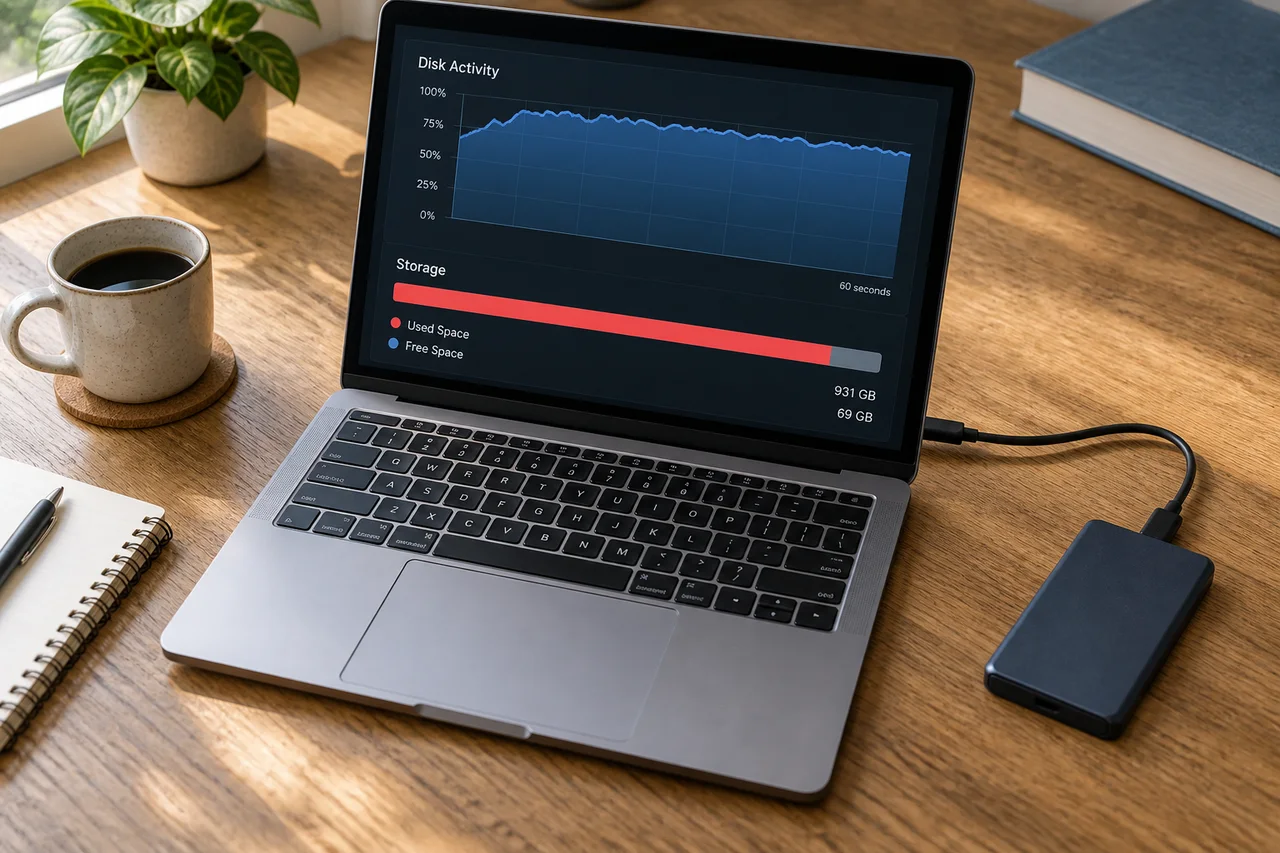
Task Manager’s disk active time is not the percentage of storage capacity used. A drive can spend most of its time responding to many small requests while transferring surprisingly little data. Check free capacity separately in storage settings or File Explorer.
Open Task Manager with Ctrl + Shift + Esc. Compare the Processes disk column with the Performance view, then note whether the condition appears only after login, during one application or continuously.
Know when to escalate
Keep the device and drive model, free space, top process, response-time observations, trigger and any file-read errors. Repeated storage warnings justify reducing activity and asking the manufacturer about diagnostics. If the issue occurs only at login, the startup-app guide offers a narrower next step than resetting Windows.
The header is an AI-generated editorial illustration, not an actual interface screenshot or an on-location report.