
Record the event, not just the code
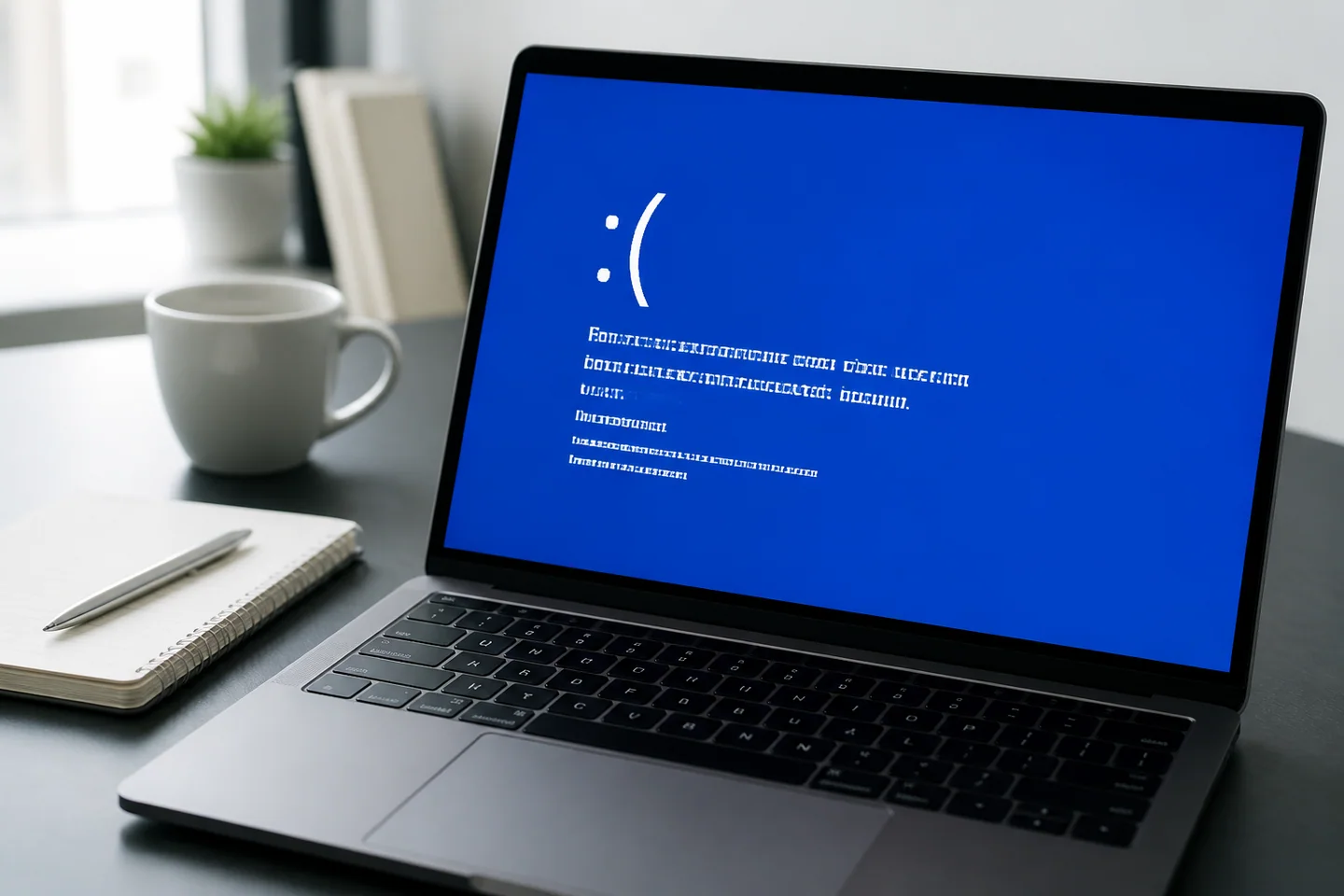
A stop code identifies a failure category, not a replacement part. Photograph the full code, any What failed module, the time and the app in use. Record driver updates, new peripherals, memory changes and whether one action reliably triggers the crash.
First establish whether Windows reaches the desktop. Back up important files if it does. If it restarts before login, prepare recovery access and the BitLocker recovery key. Screen color can differ between Windows versions; the code and circumstances are more useful.
Reverse one recent change
For a new peripheral, shut down normally and compare operation without it. For a recent driver, record the exact device and version before considering an available rollback option. Consult the PC manufacturer’s exact-model documentation.
Avoid changing network, graphics and storage drivers together. An improvement would not reveal which change mattered, and a worsening problem would be harder to reverse. Managed devices should follow the organization’s support process.
Arrange time for memory diagnostics
Open Windows Memory Diagnostic with mdsched.exe after saving documents. It requires a restart. Record its result, remembering that a pass does not exclude every intermittent hardware fault.
Reseating laptop memory is not a universal beginner step. Some devices have soldered memory; others require a specific service procedure. Check warranty and power-handling instructions rather than opening a powered machine.
Use system-file checks for a plausible file problem
In a working Windows session, an administrator terminal can run:
DISM /Online /Cleanup-Image /RestoreHealth
sfc /scannow
Complete the first operation and read its final result before continuing. These tools do not fix defective hardware. If DISM fails, keep its code and use the DISM result guide instead of repeatedly launching the same operation.
Compare the evidence
| Code | Useful comparison | Unsafe shortcut |
|---|---|---|
| CRITICAL_PROCESS_DIED | Updates and accompanying file errors | Deleting a system component |
| MEMORY_MANAGEMENT | Memory changes, workload and drivers | Buying RAM immediately |
| IRQL_NOT_LESS_OR_EQUAL | New devices and wake-from-sleep failures | Removing every named driver |
A storage bad sector is not a RAM fault. A named module might also have failed after receiving bad data from something else. Keep these possibilities separate in your notes.
Make escalation useful
Send support the model, Windows version, code photo, recent changes, login availability and attempted fixes. Crash dumps may contain sensitive information, so do not post them indiscriminately. For boot loops, continue with the safe-mode guide. A reproducible description is more useful than a long list of unrelated commands.